
Setup your first service
This guide walks you through creating your first service and adding a service instance.
Open the System setup page
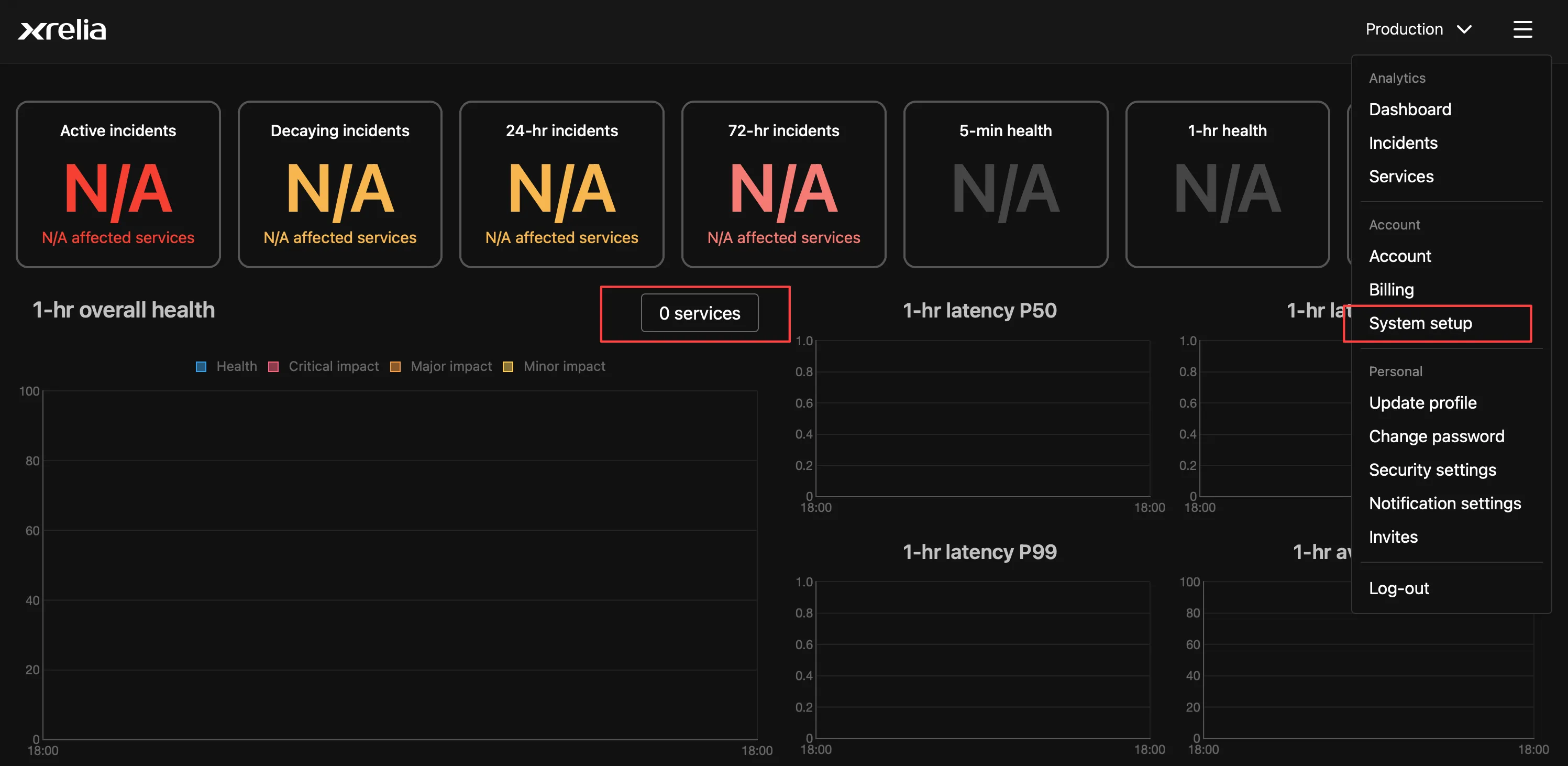
Section titled “Open the System setup page”Open System setup from the main menu, then select Services from the sidebar. You can also jump directly to the Services page from the service dropdown menu.
Access the Services page
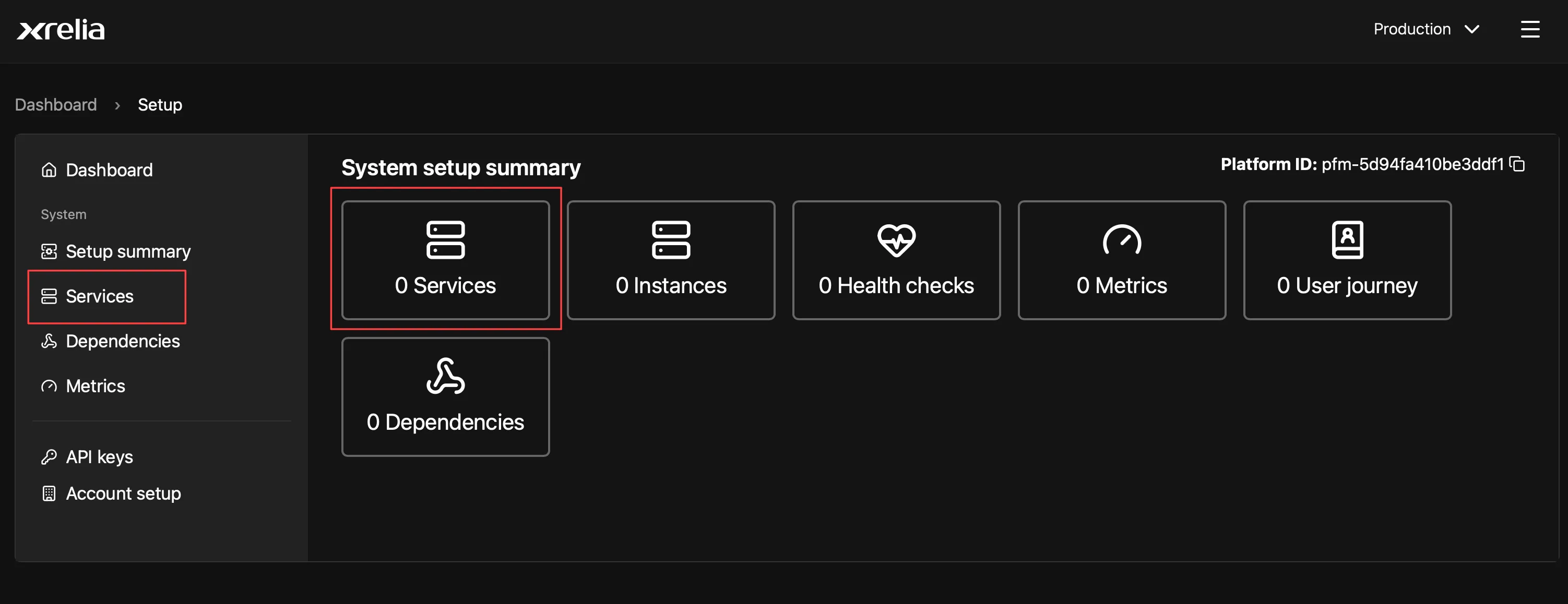
Section titled “Access the Services page”Select Services from the side menu or use the Services tile.
Add Service
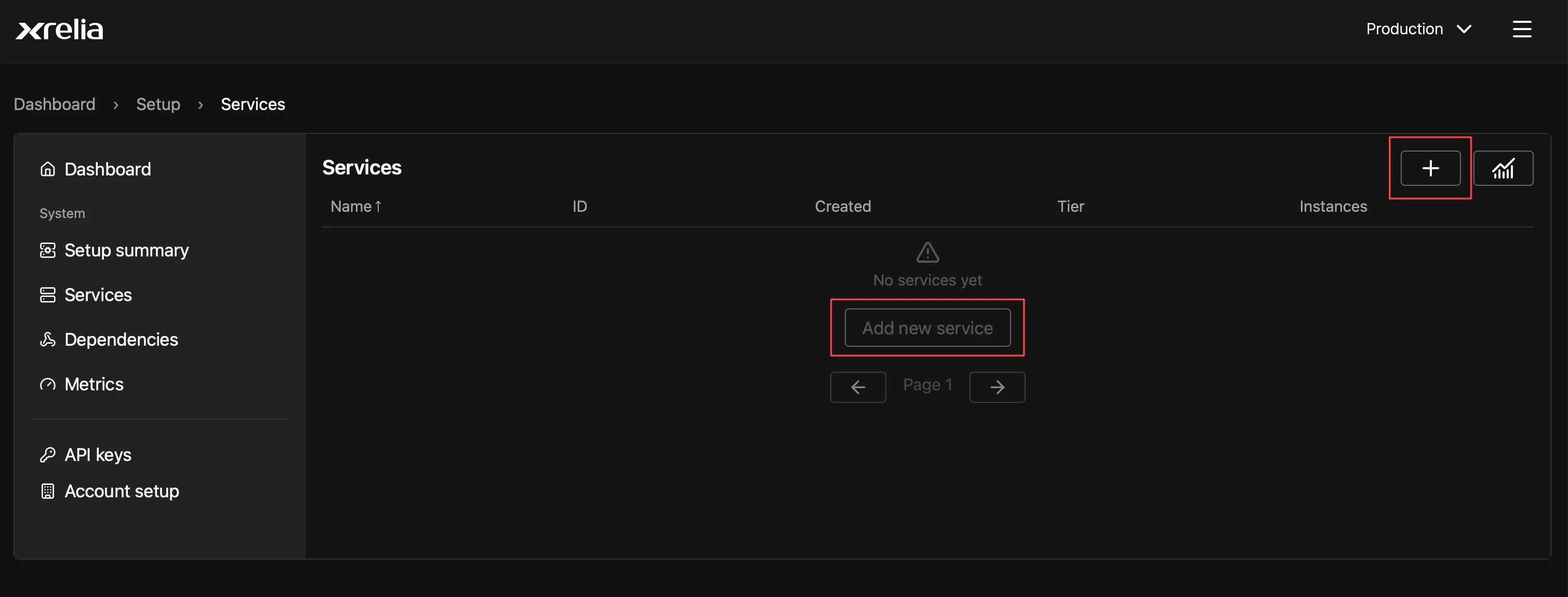
Section titled “Add Service”Select the + button or the Add new service button
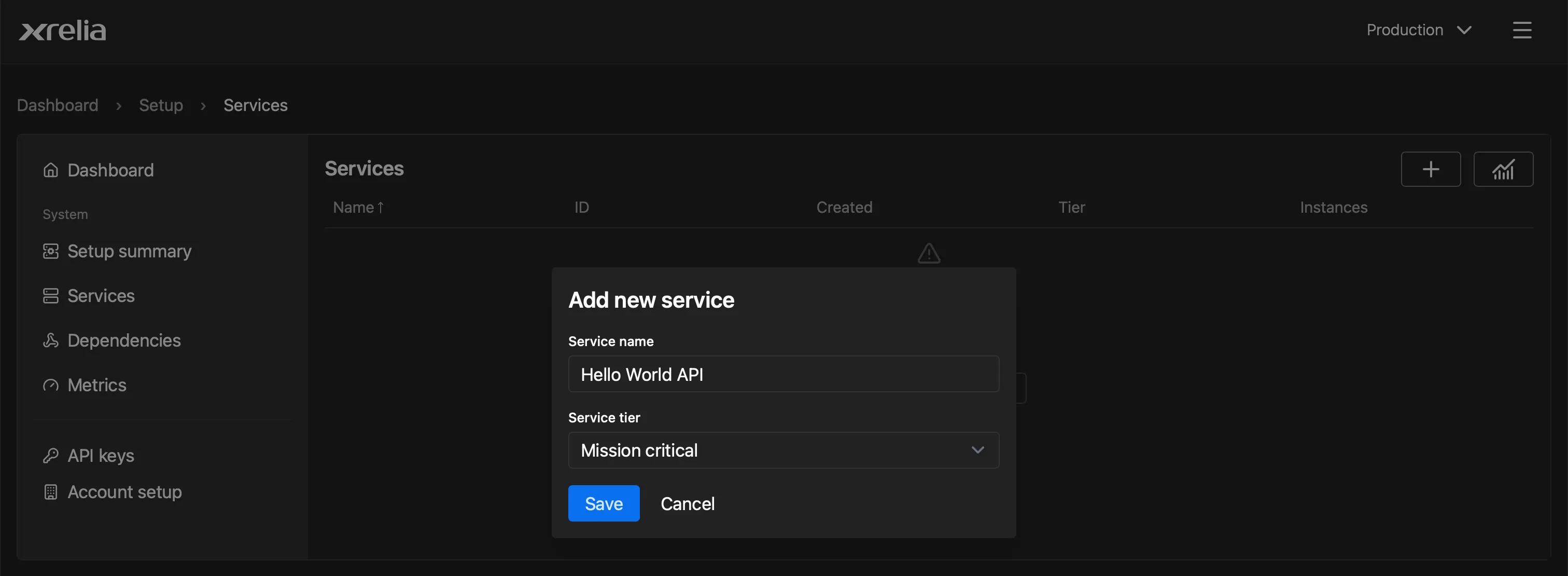
Enter a service name and choose a service tier, then save the service.
Service overview page
Section titled “Service overview page”Your first service has now been created.
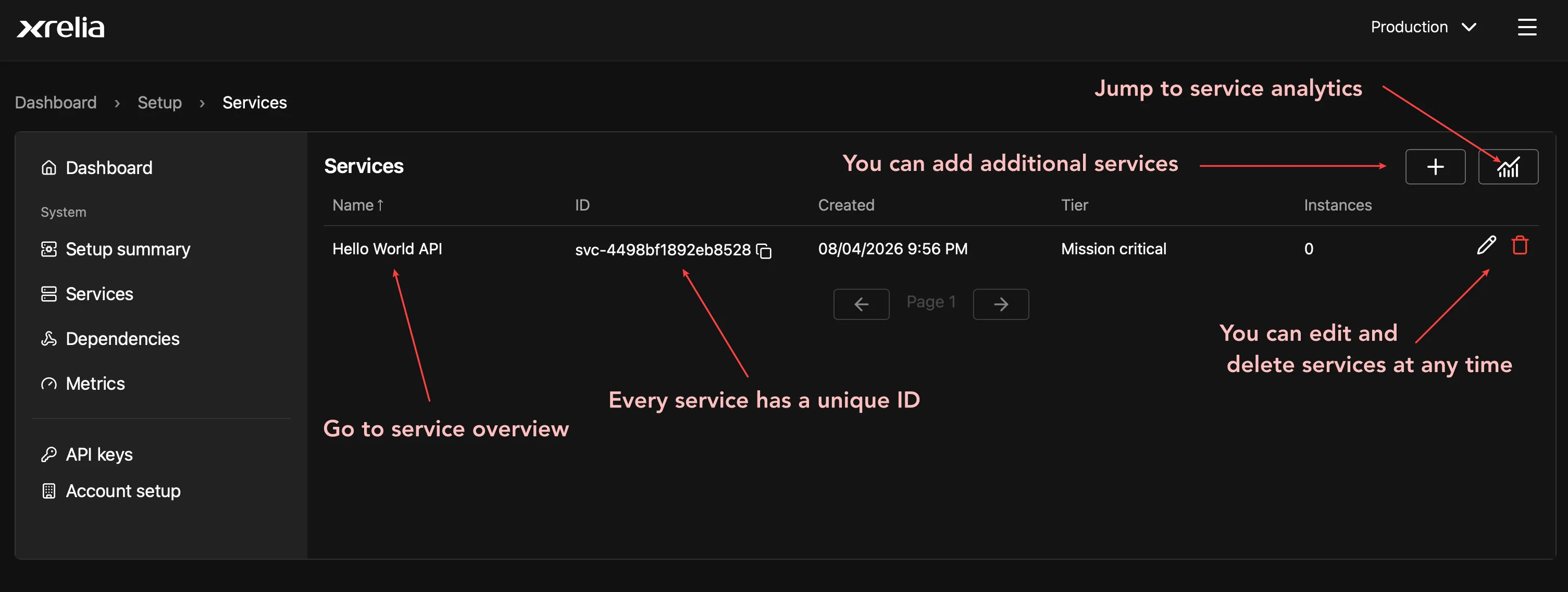
From the Services page, you can edit or delete services, open service analytics, or view the Service overview page.
Add a service instance
Section titled “Add a service instance”Every service must have at least one service instance. A service can have multiple instances across different regions, environments, or infrastructure providers.
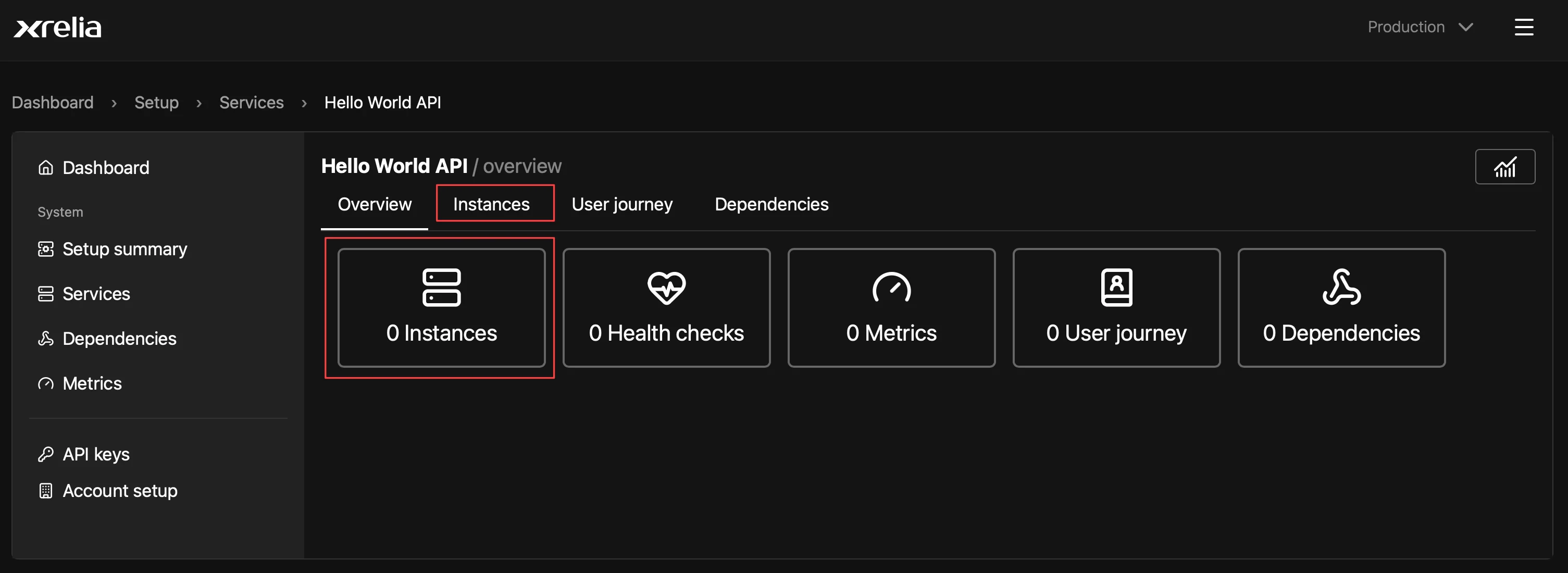
From service overview page switch to the Instances tab or select the instances tile.
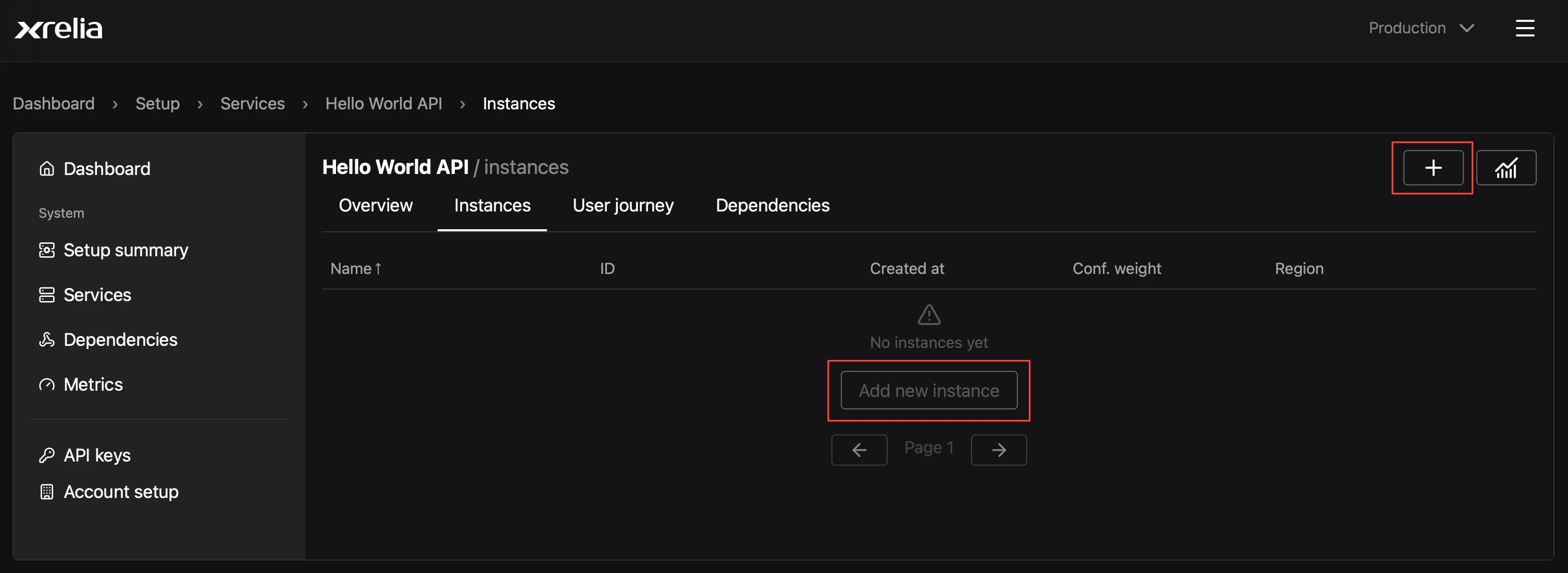
On the instances tab, select the + button or the Add new instance button.
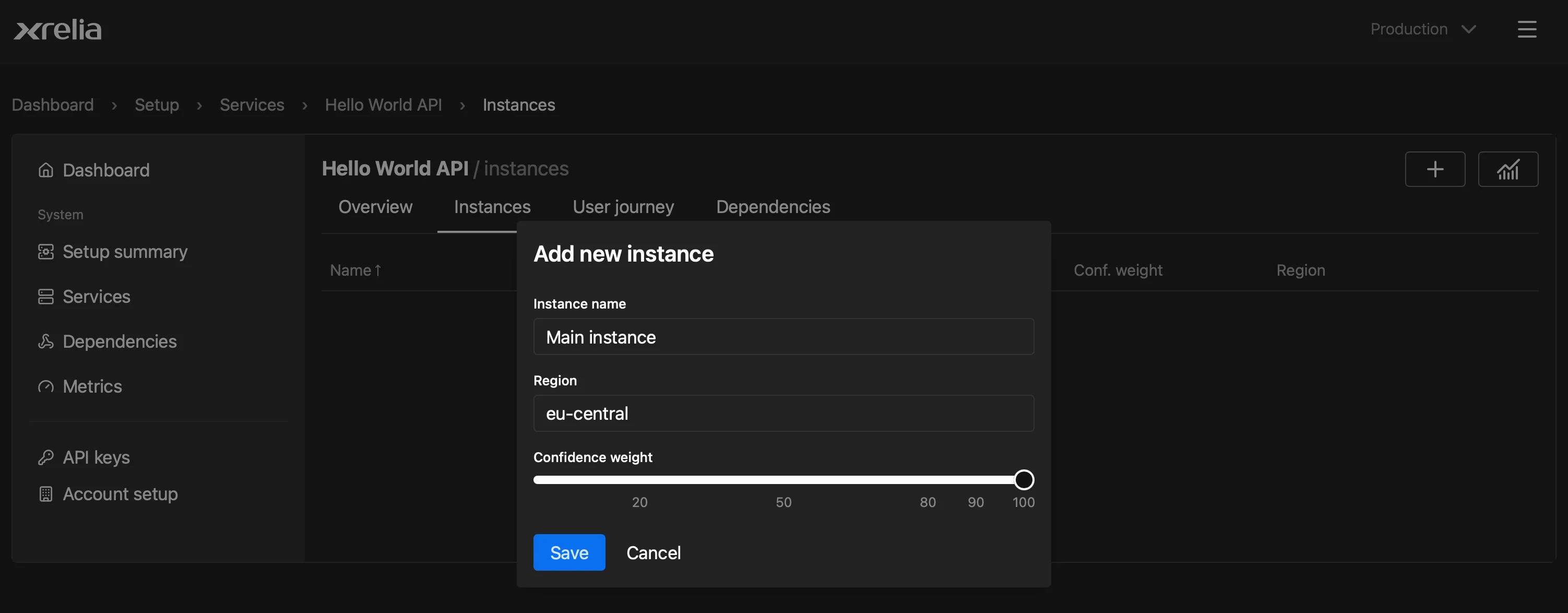
Enter an instance name, select a region, and set the confidence weight.
Confidence weight indicates how much trust xrelia should place in an instance when calculating overall service confidence.
Use 100 for a fully trusted production instance. Lower values (such as 80–90) are useful for instances that are less reliable, such as staging instances, older hardware, or regions with lower operational reliability.
In most cases, you should leave this value at 100.
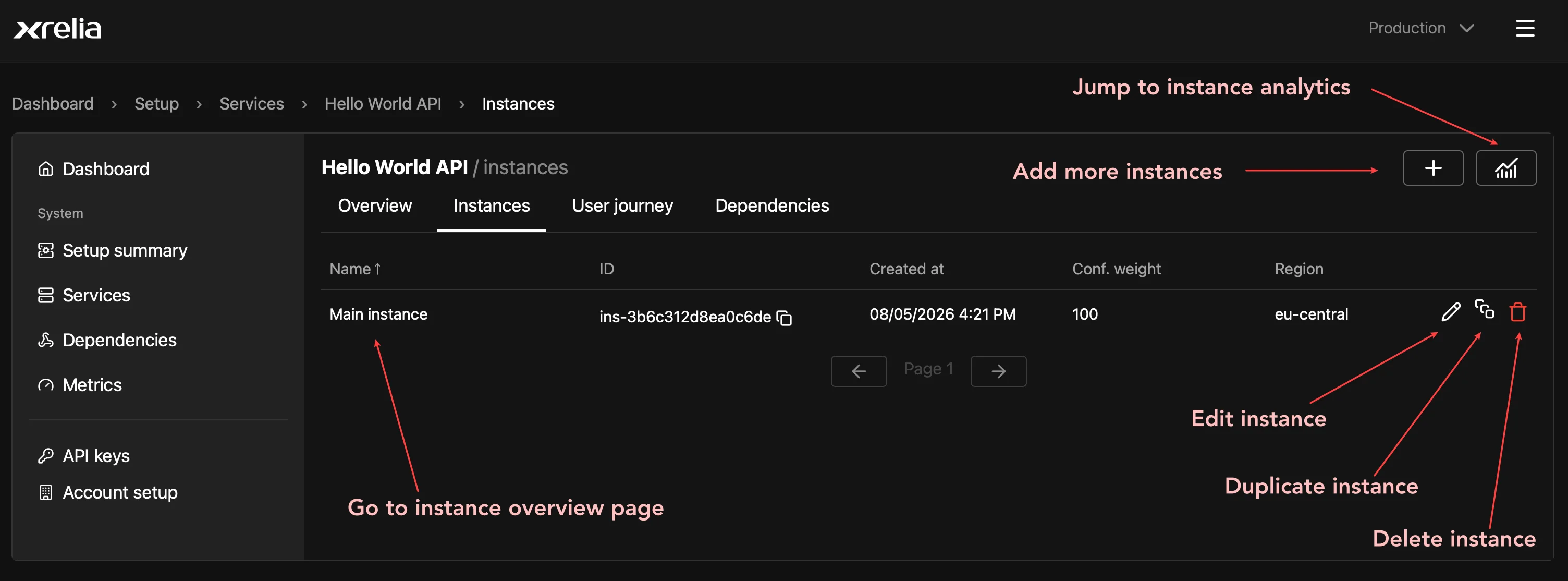
From the Instances tab, you can edit, duplicate, or delete instances, view instance analytics, or open the Instance overview page.
With your service and first instance in place, you’re ready to add your first health check.